
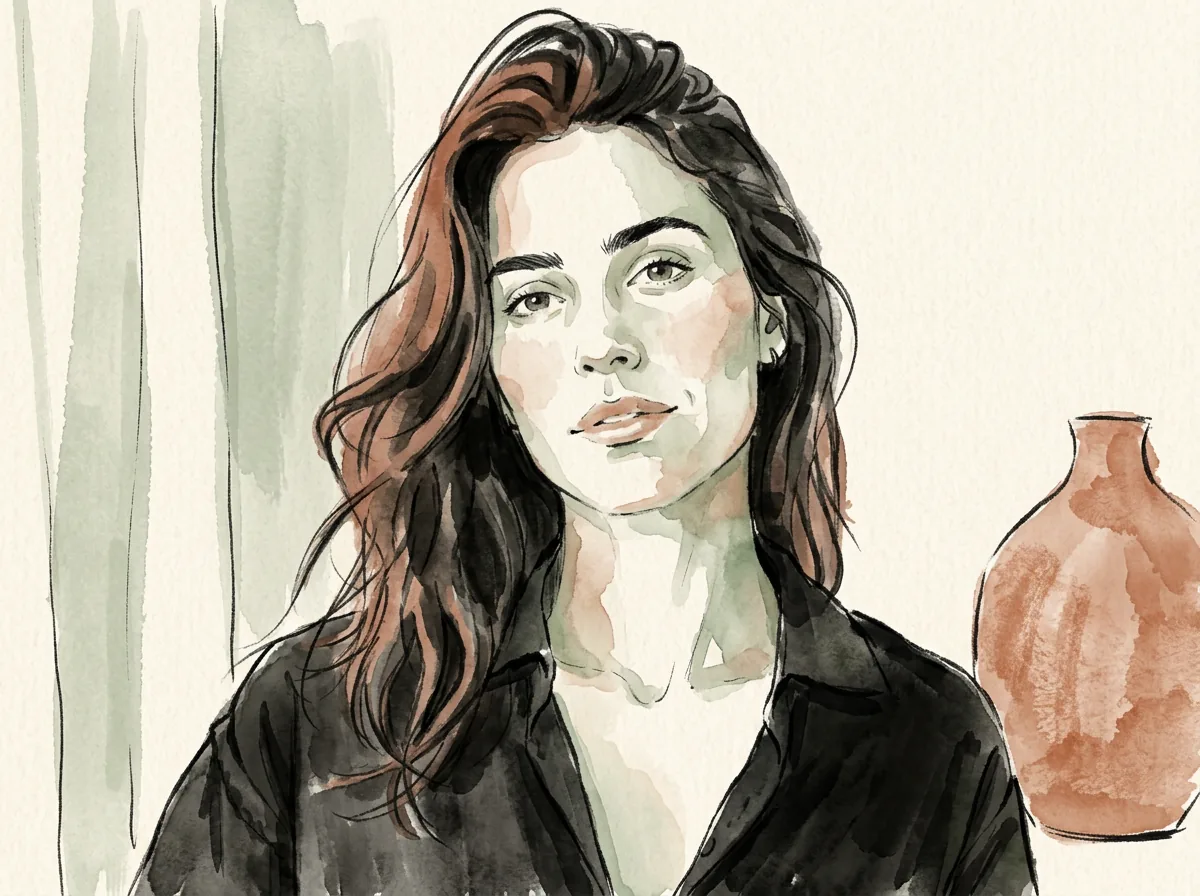
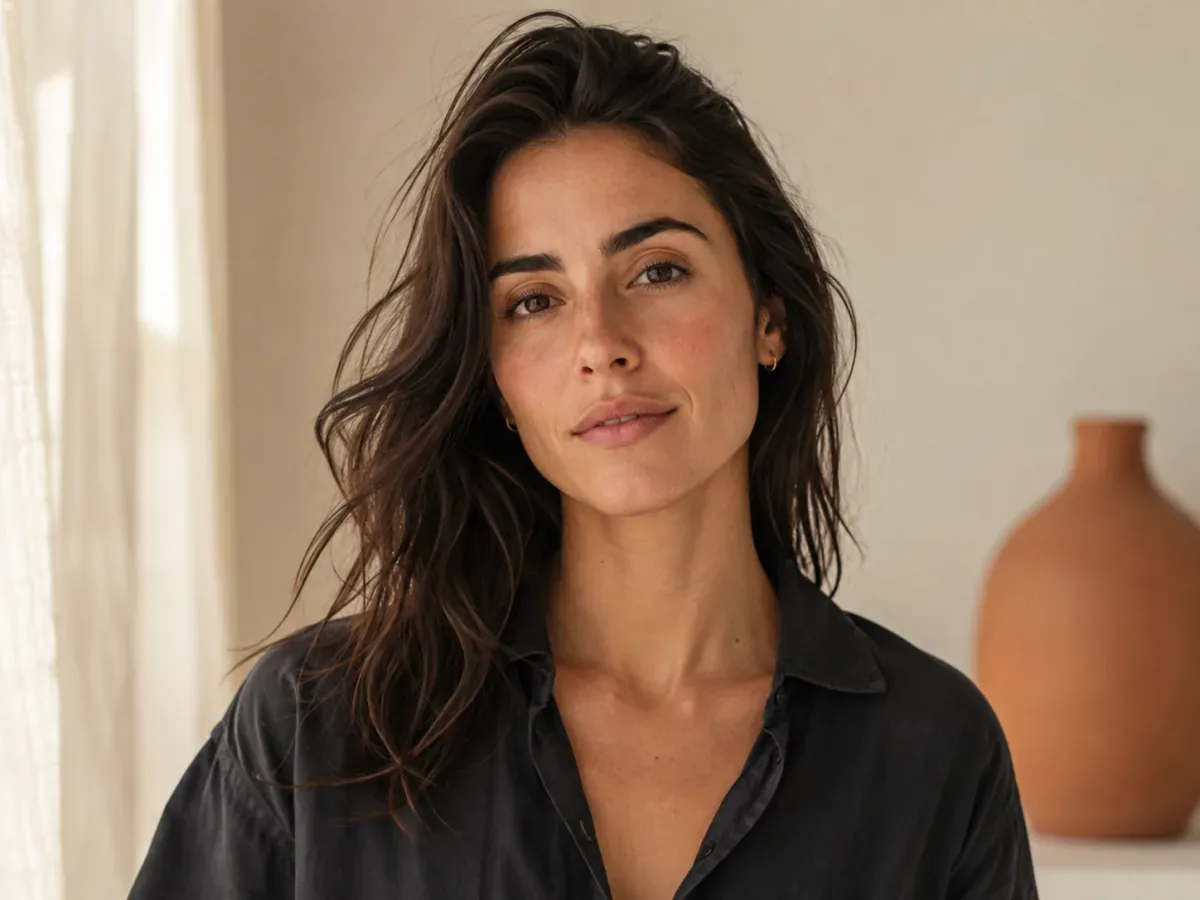
 ReferenceNew direction
Style transfer
Turn a photo, sketch, or illustration into a watercolor, editorial, cinematic, anime, or concept-art direction.
IMAGE TO IMAGE AI
Upload a reference, describe the change, and generate a fresh image while keeping the subject, mood, or composition you want.
ReferenceNew directionTurn a photo, sketch, or illustration into a watercolor, editorial, cinematic, anime, or concept-art direction.
Image to image AI uses an existing image as a visual reference and creates a new image from it. You can keep a subject, pose, product shape, or composition while changing the style, background, lighting, clothing, or overall mood.
The most useful prompts say what should stay stable and what should change. Upload a reference image, describe the direction in plain language, then review the result and refine one detail at a time.
Start with a subject, product, or composition you already have, then make a focused visual change.
Try GPT Image 2.5 for reference-guided image editingReferenceNew directionTurn a photo, sketch, or illustration into a watercolor, editorial, cinematic, anime, or concept-art direction.
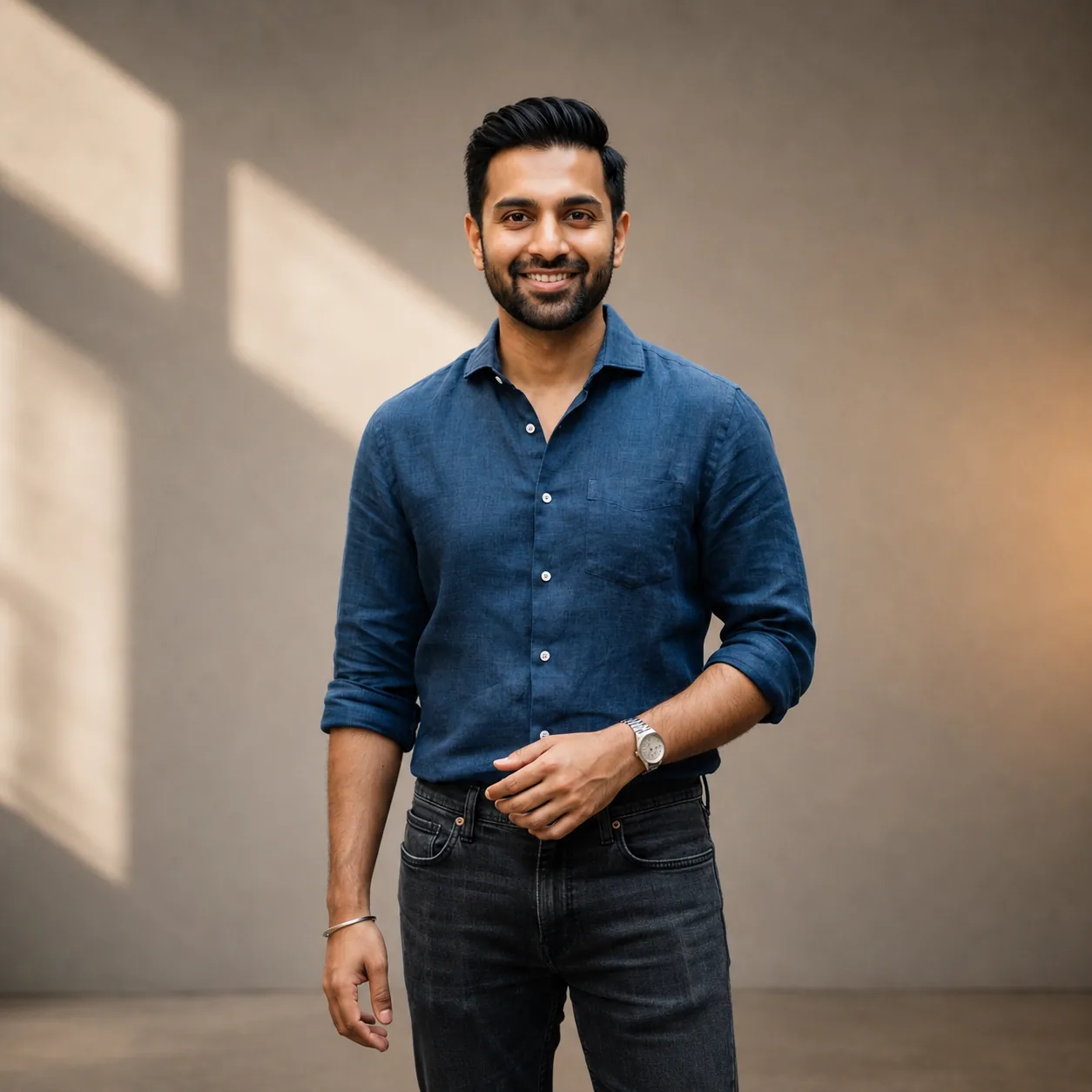
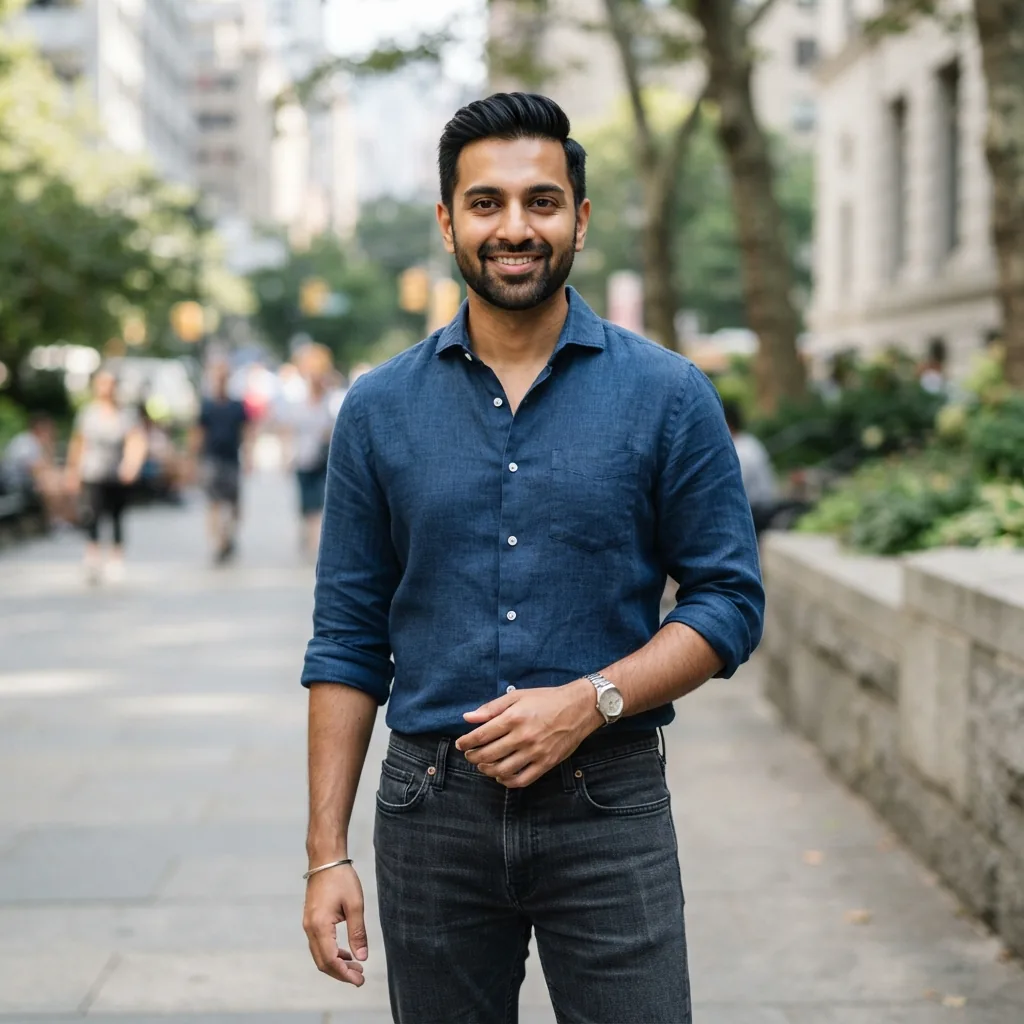 ReferenceNew direction
Keep the main subject while moving it into a studio, landscape, room, campaign setting, or new time of day.
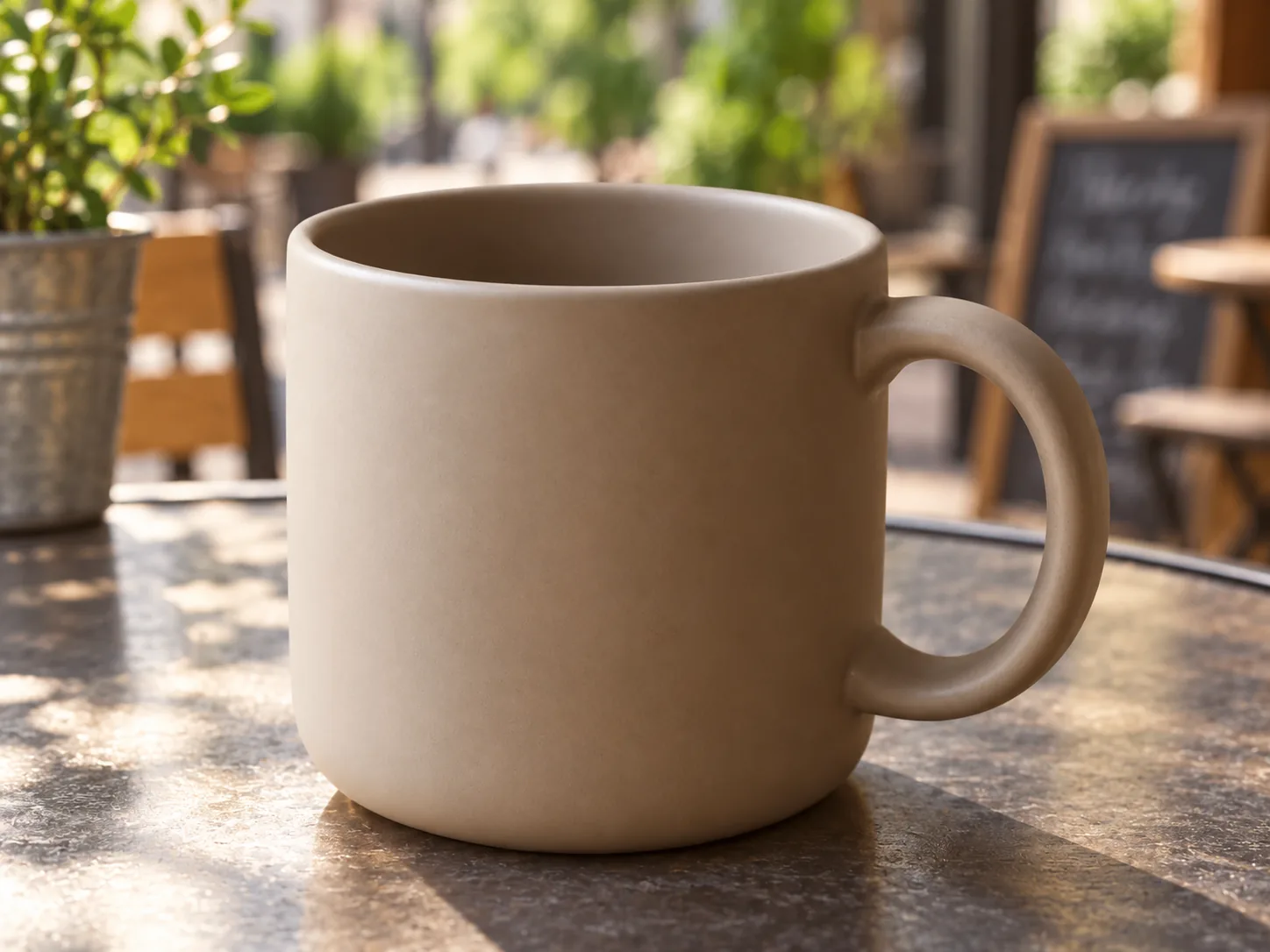
 ReferenceNew direction
Keep a product shape and camera angle while testing new surfaces, colors, lighting, and lifestyle scenes.
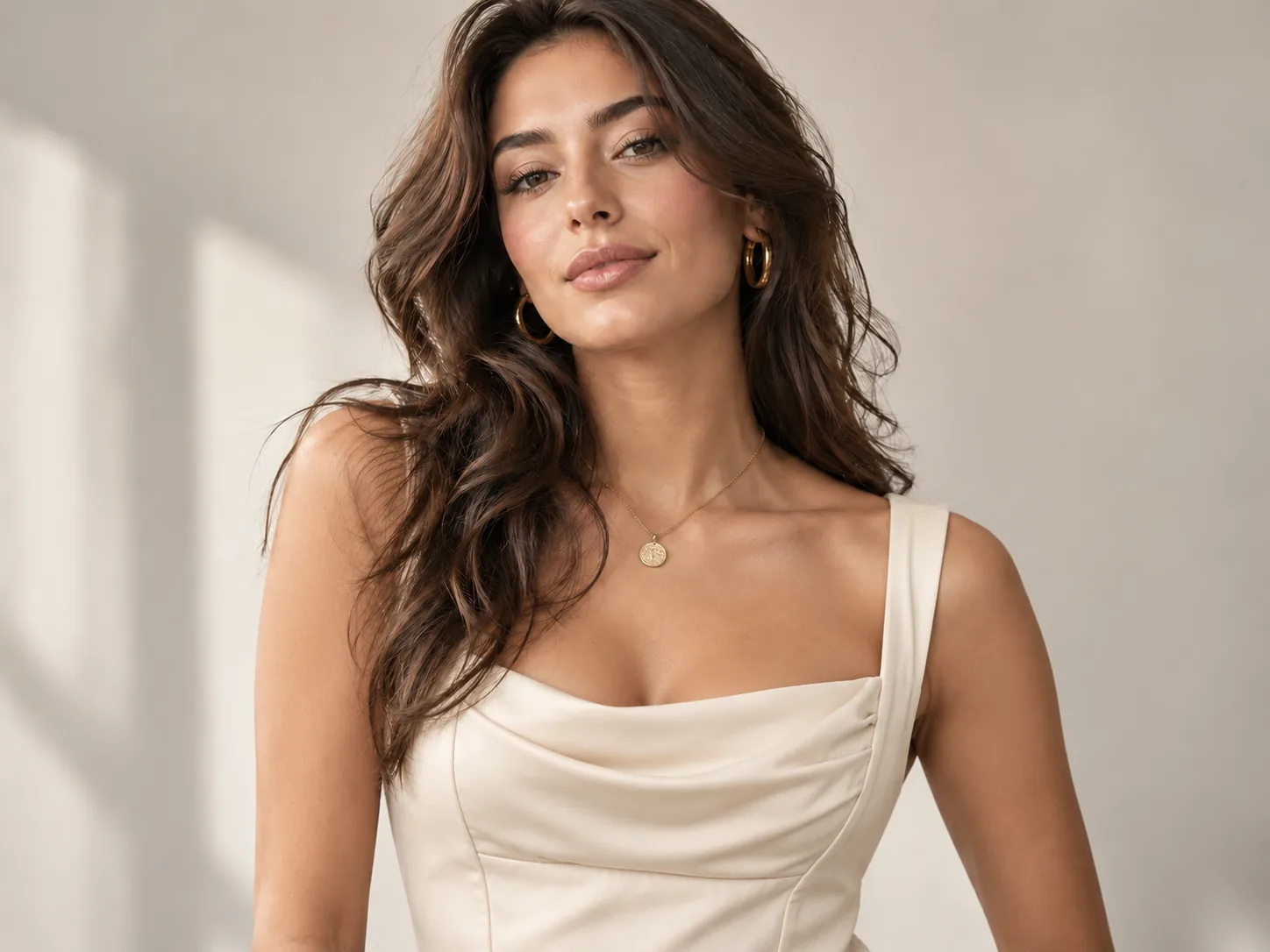
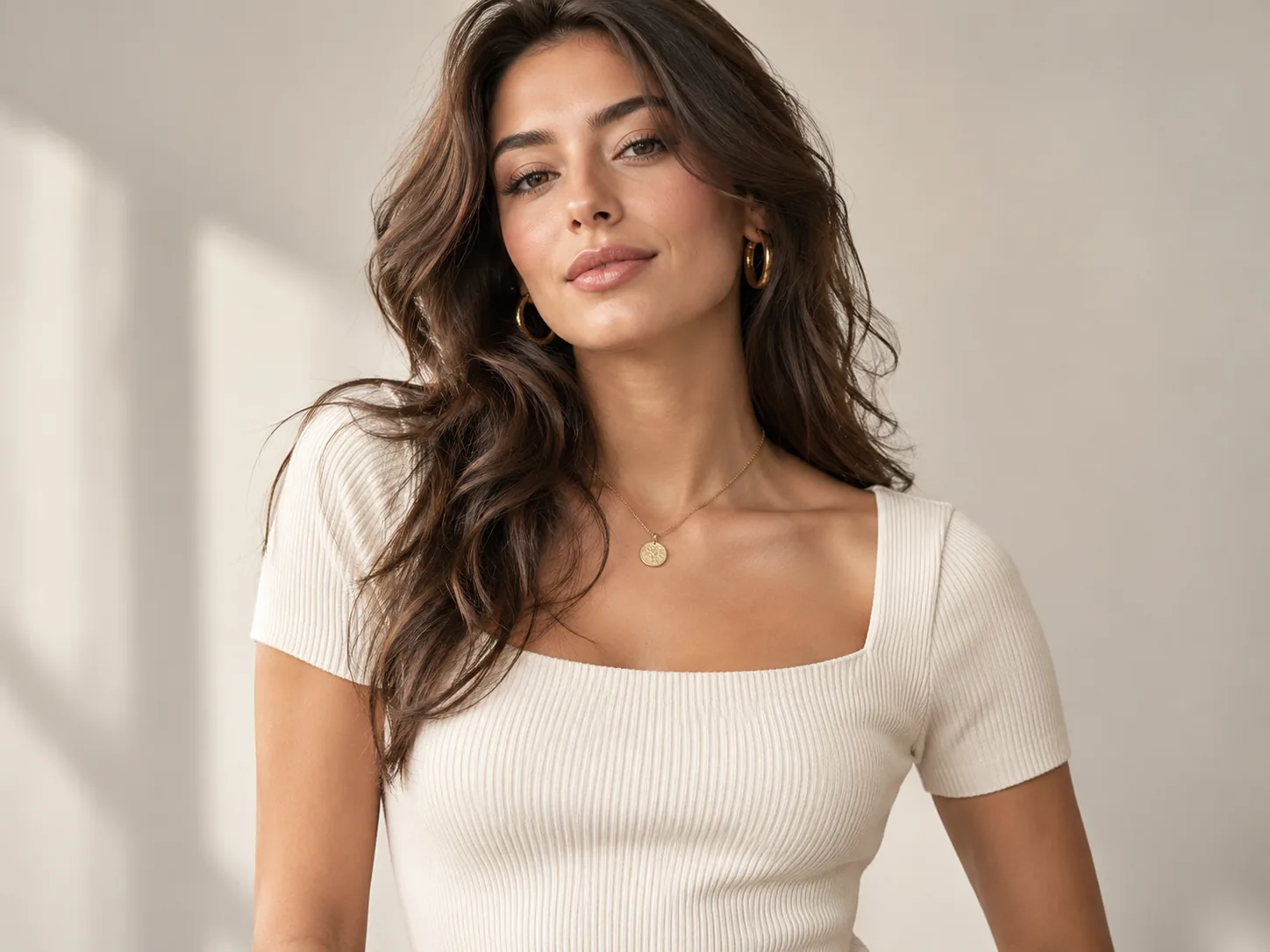 ReferenceNew direction
Use a person or character reference to explore clothing, color palettes, poses, and visual moods.
Start with the image you already have and make the change your project needs.
Explore styles, characters, compositions, and visual references before polishing a final asset.
Test product scenes, surfaces, and campaign directions while keeping the product recognizable.
Create early social, editorial, and campaign concepts with room for headlines and brand copy.
Turn a photo, sketch, or existing visual into a fresh idea without starting from a blank canvas.
These tools can overlap, but they solve different jobs. Choose the workflow that matches the change you want to make.
Starts with a reference image and generates a new visual direction from the reference plus your prompt. It is useful for style changes, scene variations, and concept exploration.
Usually focuses on targeted edits such as object removal, background replacement, retouching, enhancement, or local changes. Those capabilities depend on the specific editor.
Upload a reference, describe the change, and generate a fresh image while keeping the subject, mood, or composition you want.
Start with a photo, illustration, or product image you have permission to use.
Tell the model what to preserve and what to transform in plain language.
Compare the new direction, download it, or refine the prompt for another version.
PROMPT EXAMPLES
Browse the same prompt and image cases used on the Videm homepage. Open a case to copy its prompt or load it into this image-to-image generator.
A few precise instructions help the model understand the relationship between the reference and the requested change.
Say “keep the person and pose” or “preserve the product shape and camera angle” before describing the new direction.
Start with the style, setting, or lighting change that matters most. Add secondary details after reviewing the first result.
Mention portrait or landscape format, subject placement, and negative space when the image will be used in a layout.
Only upload images you are allowed to use, and review people, brands, characters, and generated content before commercial publication.
Choose a credit plan for image to image generation and other Videm tools.
It uses an existing image as a reference and generates a new visual based on your prompt. You can guide the style, scene, lighting, composition, or other changes.
Upload a reference image, describe what to preserve and what to change, choose the available settings, and generate a new direction.
Yes. Sign in to use the free daily credits shown in the generator. Additional tasks may require credits.
Yes. Try prompts such as “keep the subject and pose, change the image to a soft watercolor illustration.” Results depend on the reference, prompt, and selected model.
Yes. Describe the new setting and say which subject details should remain stable.
You can prepare a prompt and upload a reference before signing in, but image generation requires an account.
The selected model determines the limit. The generator shows the available slots and accepted formats before submission.
Review the rights for your reference material, people, brands, and generated content before publishing. Use only images you are allowed to use.
Upload a reference and make a specific change
Choose a prompt example, upload your image, and describe what should stay and what should change.