
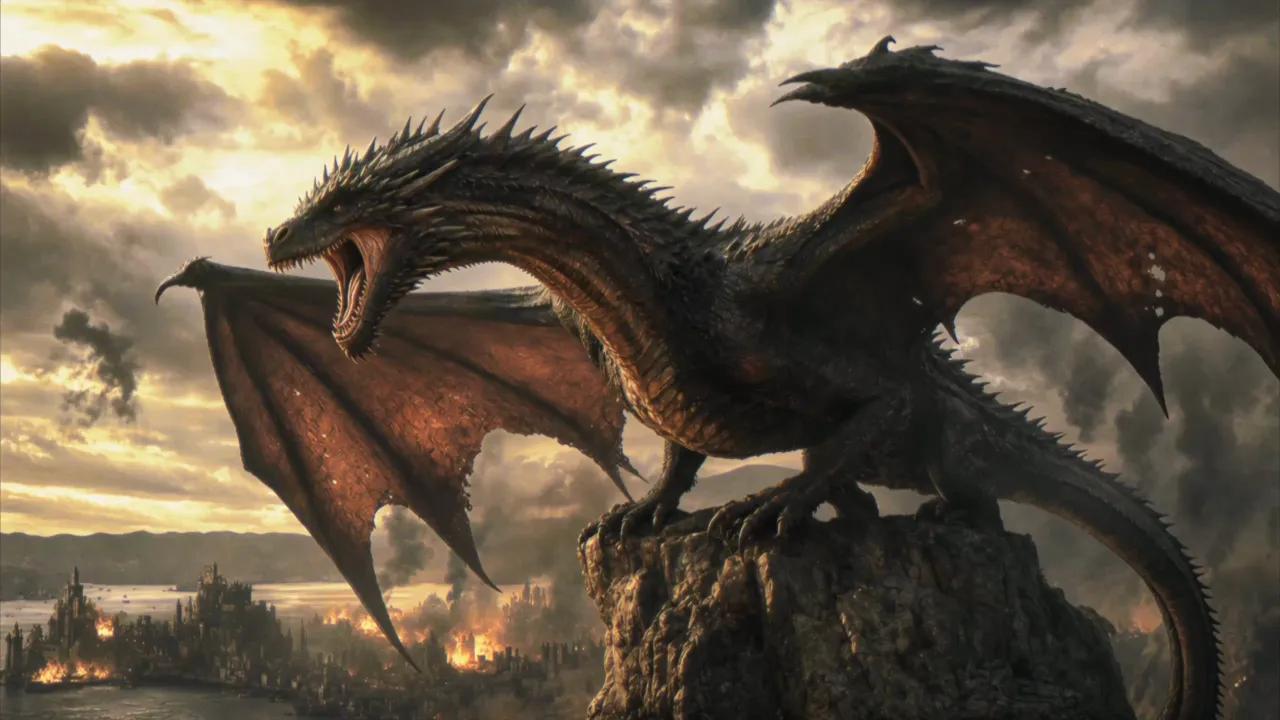
The Human Fly: stadium stunt
A costumed rider approaches a stadium ramp as the crowd watches.
 Kling 4.0 · Videm
Direct a scene from the first image to the final moment. Use Kling 4.0 to guide character appearance, camera movement, and sound in your video.
3–30 seconds · 720p / 1080p · Native audio
Explore action, comedy, and camera movement. Use a starter prompt to try your own scene.
A costumed rider approaches a stadium ramp as the crowd watches.
An animated octopus juggles cocktail shakers behind a neon bar.
A parkour sequence follows a runner across urban rooftops.
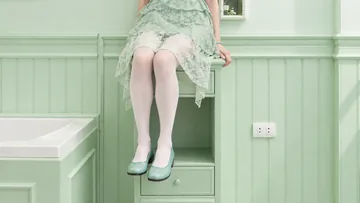
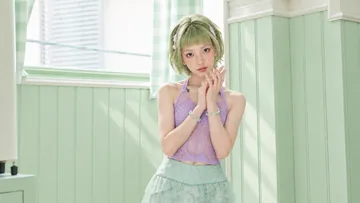
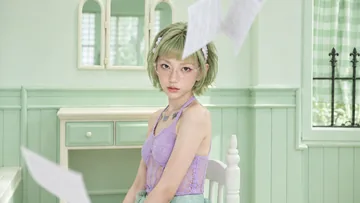
Start with your opening image in Kling 4.0. Add middle and ending frames for the moments you want to reach, then describe what happens between them.
Keyframe inputs
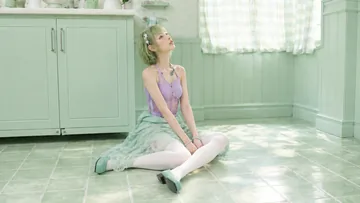
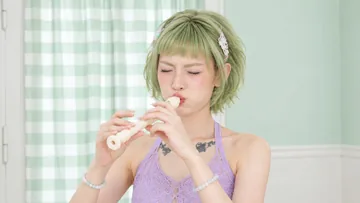
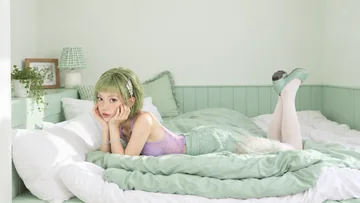
Generated video
Set your clip to any whole second between 3 and 30 seconds. You can keep scenes brief for punchy visuals or extend runtime to let action and camera movement play out naturally.
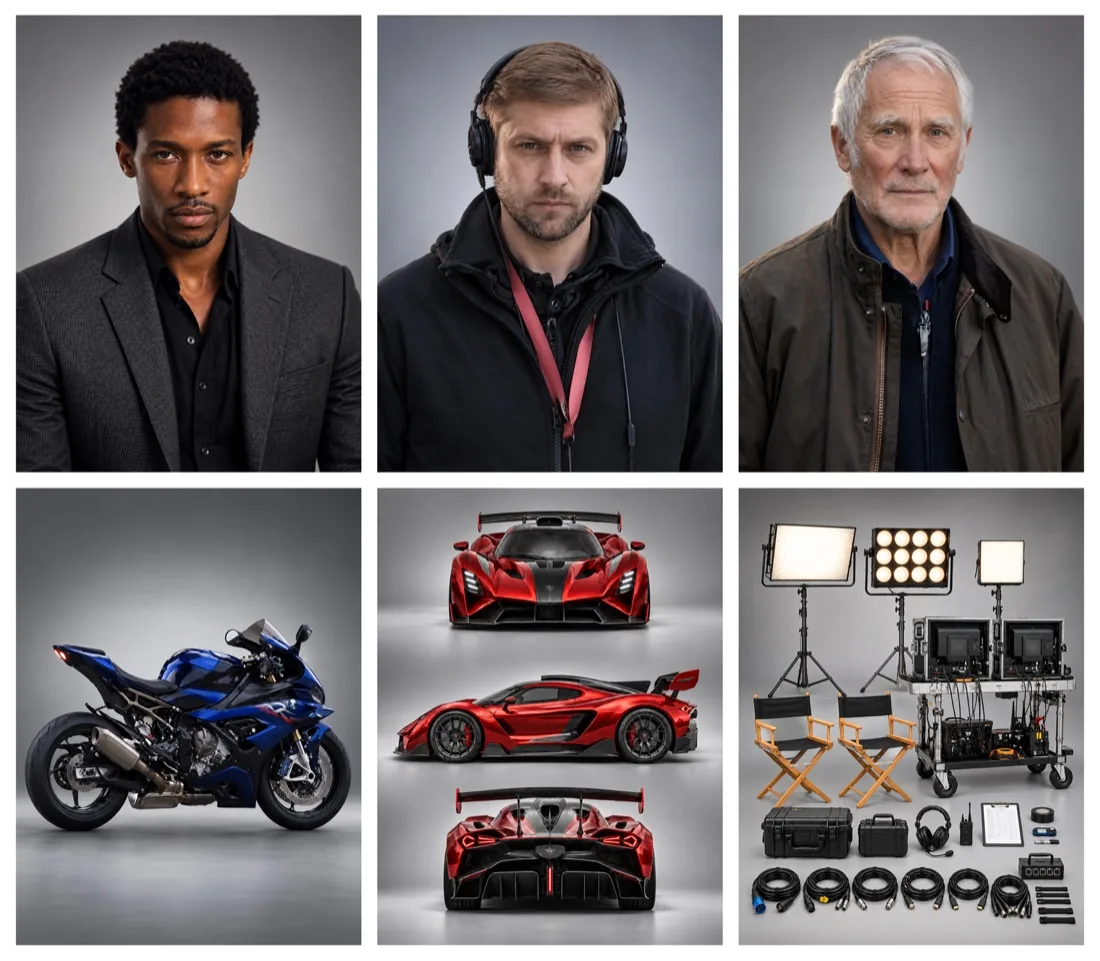
Guide Kling 4.0 with up to ten images and five video clips to help shape character appearance, wardrobe, and motion style. Call out assets using tags like @image_1 to guide output.
Need to adjust a reference first? Refine its style or setting in the image-to-image editor, then bring the finished image into Kling 4.0.
Generated video
Describe voices, footsteps, or the sounds around your subject. Kling 4.0 generates audio alongside video; with reference footage, you can also choose whether to keep its original sound.
Choose your inputs, direct the scene, and generate.
Type a prompt from scratch, load reference images and clips for visual style, or arrange keyframes.
Say what the subject does, where the camera moves, and what the audience hears.
Choose duration and resolution, check the credits, and generate. Download the video when it is ready.
Starting with one photo? Explore the image-to-video generator for a simpler photo-animation workflow.
A few specific details give the model more to work with.
Describe physical motion and camera framing to maintain a clear sense of space throughout the shot.
Use @image_1 for an outfit or appearance and @video_1 for a movement. Mention only assets you have uploaded.
This example uses a first frame, one middle frame, and a last frame. Describe the action connecting them.
Name the speaker, write the line, and describe the sounds around them. Keep dialogue short enough for the clip.
Choose by how you direct: visual checkpoints, planned cuts, or a larger collection of reference material.
| Your creative need | Kling 4.0 | Kling 3.0 | Seedance 2.5 |
|---|---|---|---|
| Time for the scene | 3-30 seconds per clip | 3-15 seconds per clip | Up to 30 seconds per clip |
| Direct the sequence | Up to 10 visual keyframes to guide key moments | Multi-shot storyboards with shot-level direction | Prompt-driven action and transitions across shots |
| Bring your references | Up to 10 images and 5 video clips in Reference mode | Image and element references for recurring subjects | Up to 30 images, 10 videos, and 10 audio clips |
| A project to try | A product reveal with planned visual milestones | A short dialogue scene with several camera cuts | A campaign built from visual and audio references |
Kling 4.0 limits reflect this workspace; keyframe counts depend on clip length. Other model features vary by platform and mode.
Choose a recurring subscription or buy credits for a one-off project.Compare plans and credit options before choosing a subscription.
Open the original posts for more scene ideas and context.
Generations are powered by Kling 4.0, created by Kuaishou. Videm is an independent browser platform not affiliated with Kuaishou.
Yes. You can attach images as style references, or set an initial image in Keyframe mode to anchor the start of your video.
You can provide up to 5 reference videos between 2 and 30 seconds each, with a maximum combined video length of 30 seconds.
Choose any whole-second duration from 3 to 30 seconds. The default is 5 seconds.
Yes. The model creates native audio from prompt descriptions. You can prompt dialogue, though exact lip sync is not guaranteed.
No. Output is provided in 720p and 1080p formats. 4K resolution is not supported in this workspace.
A first image is required. Add an optional last frame and up to eight middle frames. The total limit is your duration in seconds plus one, capped at ten. A 5-second clip supports six frames; 9 seconds or longer supports ten.
Costs are based on your selected duration, 720p or 1080p resolution, and reference video length, shown before you generate.
No API key is necessary. Just log in to Videm and generate video using your available account balance.
No. Reference mode and Keyframe mode are independent workflows and cannot be run in the same generation.
References offers Auto, 16:9, 9:16, 1:1, and 21:9. Keyframes follows the aspect ratio of your first image.
