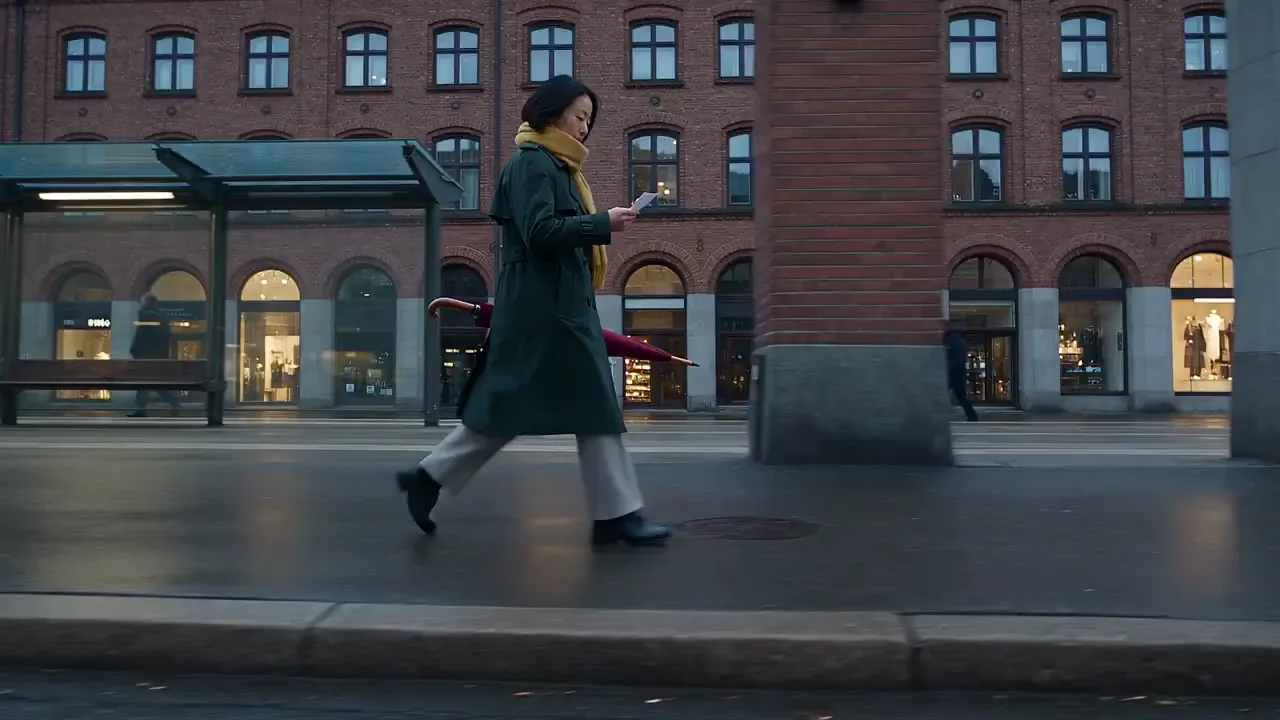
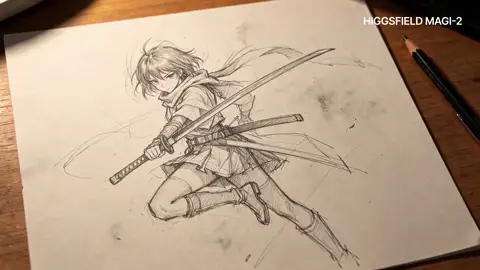
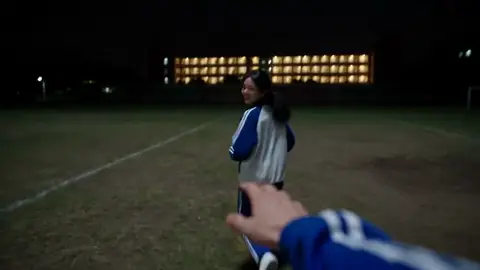
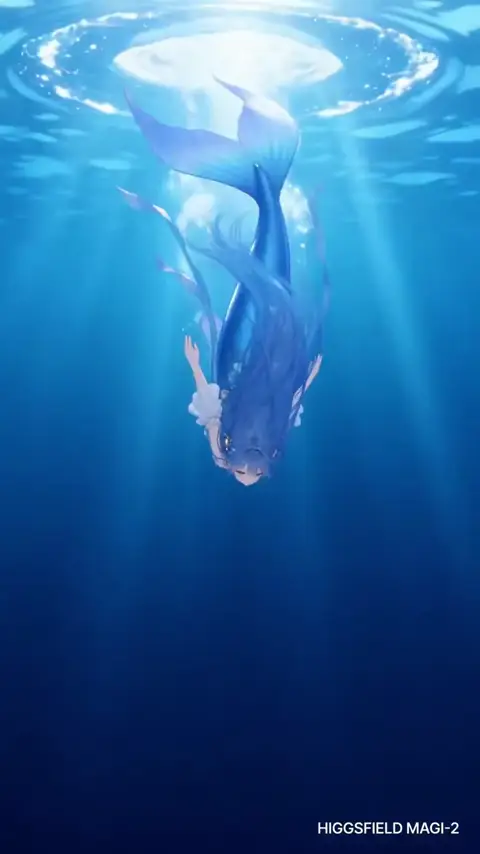
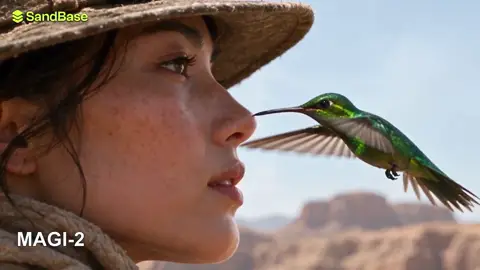
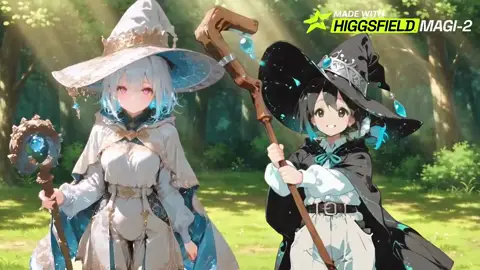
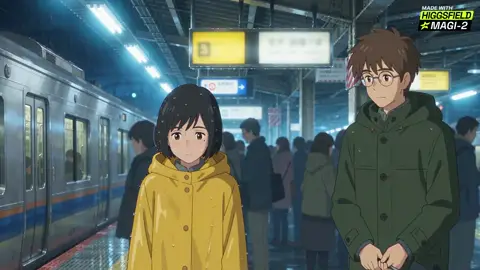
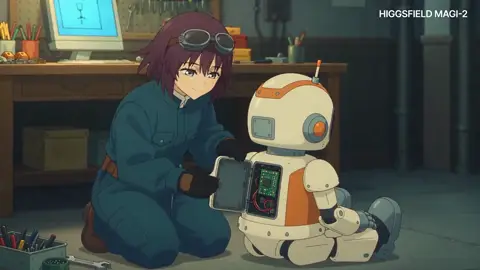
Turn a prompt or a still image into a 1080p video up to 30 seconds long, with or without sound. If you start with an image, you can add a last frame to guide the ending.
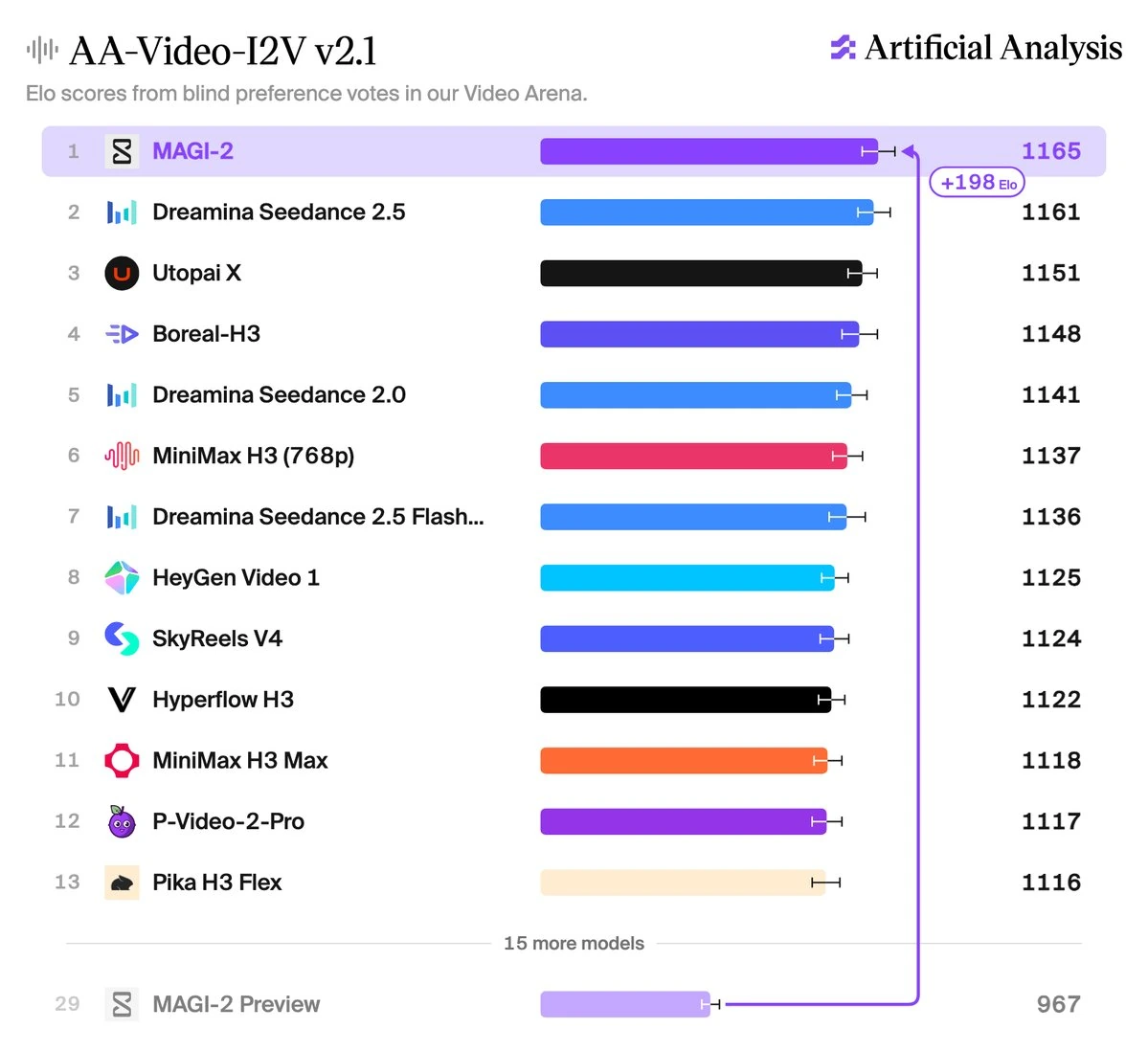
Elo reflects evaluator preferences in blind, side-by-side comparisons. The ± figure shows the margin of the 95% confidence interval. These are model ratings, not Videm test results.
Leaderboard snapshot:
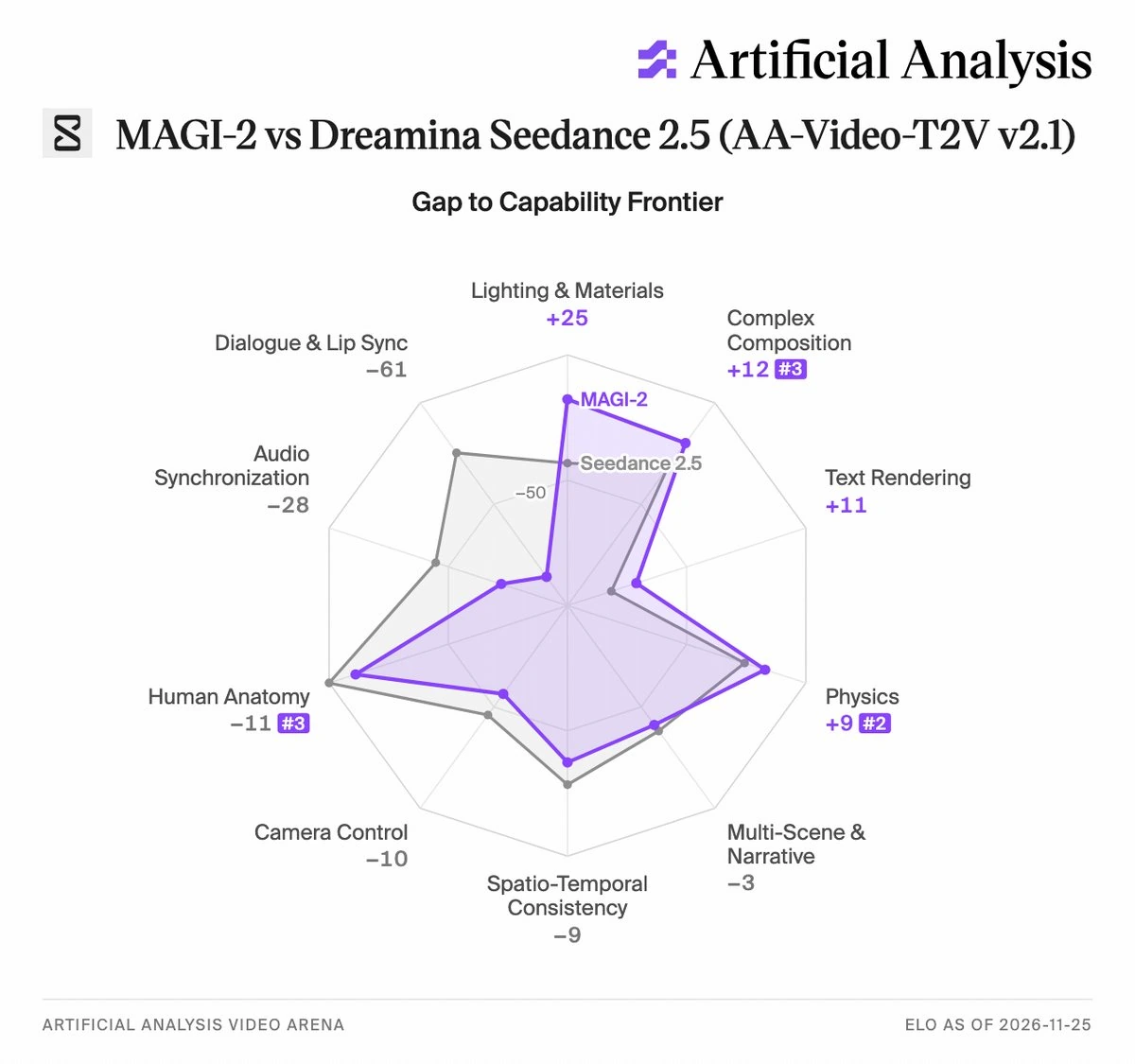
Image-to-video launch chart: MAGI 2 scored 1,165 Elo. The ratings above come from a later leaderboard snapshot. Original Artificial Analysis post Text-to-video comparison with Dreamina Seedance 2.5: MAGI 2 is stronger in lighting and materials but trails in dialogue and lip sync. November 25, 2026. Original Artificial Analysis post
Four ways to start a MAGI 2 clip
Each case pairs one kind of input with the prompt habits that suit it. Pick the one closest to what you already have.
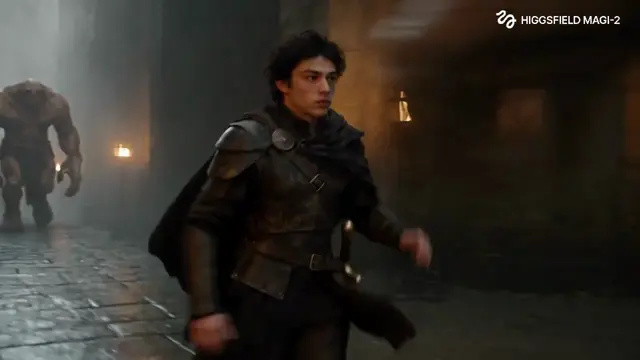
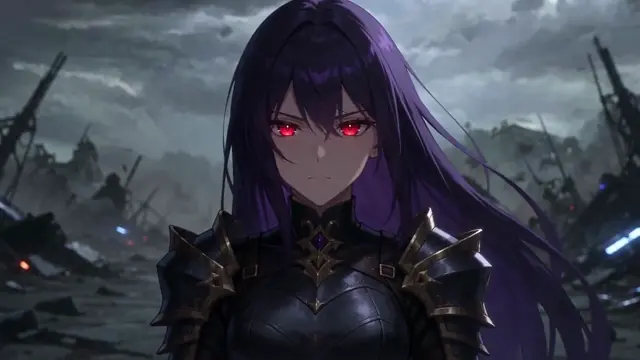
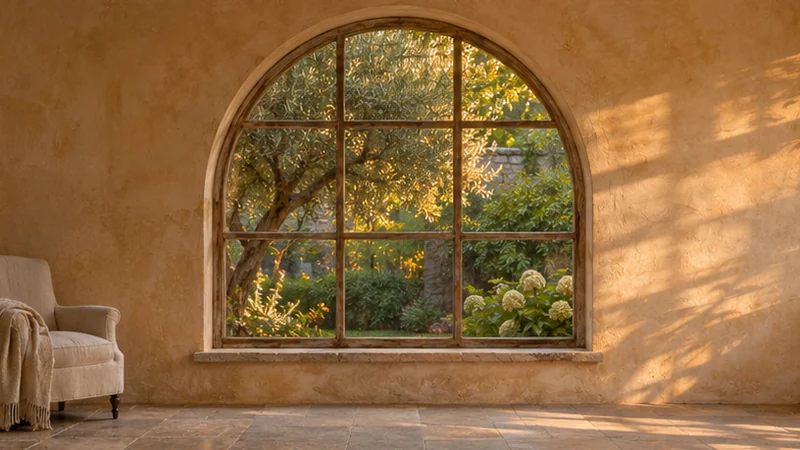
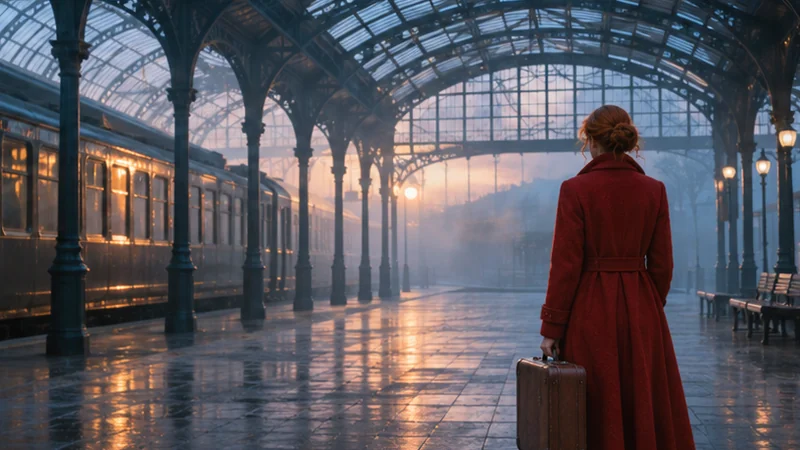
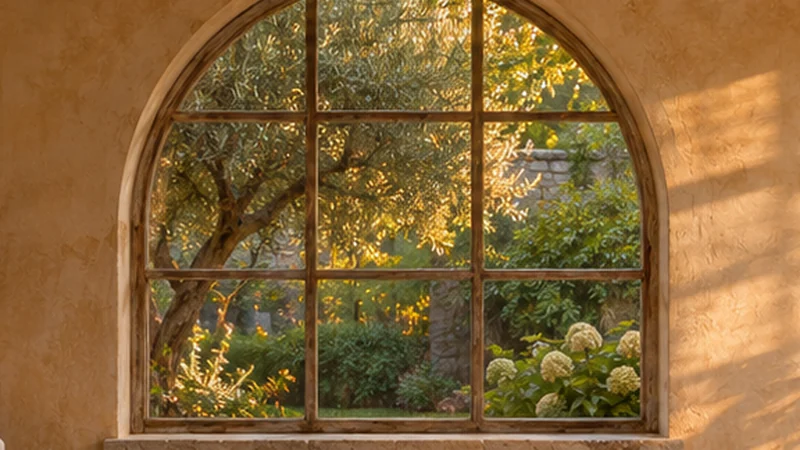
The pictures show example inputs, not videos generated by MAGI 2.
Three steps on this page, from choosing an input to checking the result.
Write a prompt, or add a first frame beside the prompt box. With a first frame, the motion prompt and last frame are optional.
Set the length and choose whether to generate sound. Sign in, check the displayed credit cost and submit.
Play the result to check the motion, the ending and any sound you requested, then download it. To try another take, adjust the input and check the new quote before generating again.
First frame
Last frame (optional)
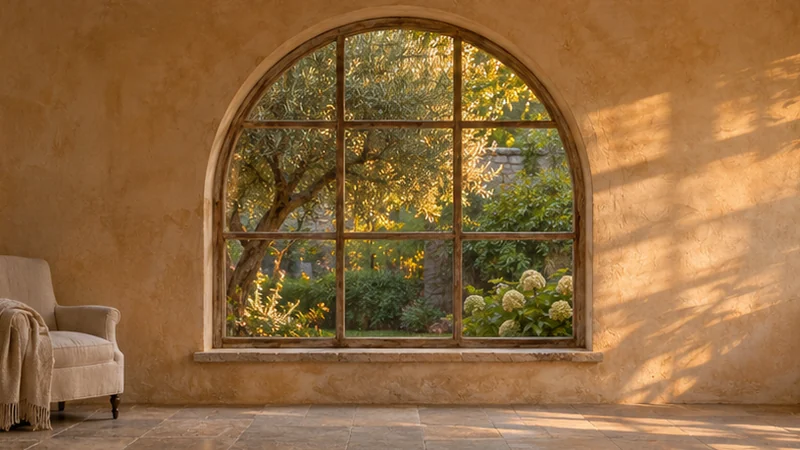
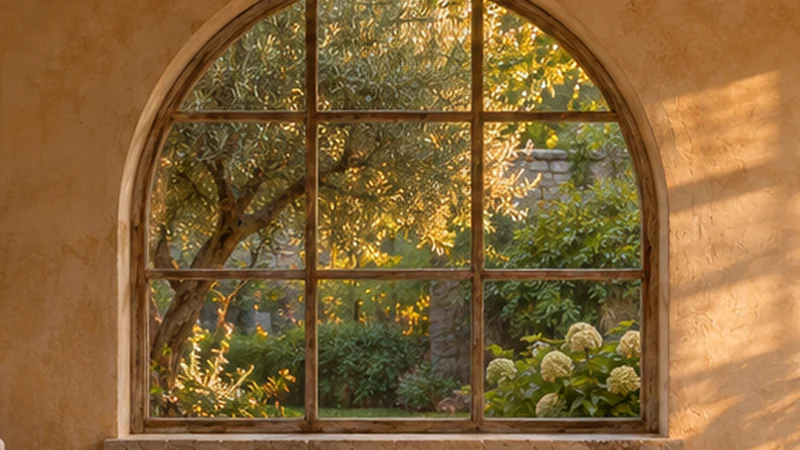
Example pair for image mode: a wide view and a closer crop of the same room.
Guide the ending with a last frame
A last frame gives MAGI 2 a composition to move toward, not one to reproduce exactly. Use two views with the same subject and similar lighting and proportions.
Storyboard: moving the camera toward a window (input illustration)
Choose a clear opening image. MAGI 2 uses its aspect ratio for the video.
02Motion between frames
Optionally describe one move: a camera push-in, a turn, or a change in the light.
03Ending composition
Add a last frame when you have a target. Leave it out if the ending is open.
If your MAGI 2 clip looks like it cuts between frames, try a tighter crop of the first image for the ending and describe a forward camera move. Use a separate shot if the location changes.
Sound and dialogue in MAGI 2
Sound is on by default. Write the noises you want to hear and any line a character should say. The model aims for them, though wording and timing can differ from the prompt. Turn sound off if you plan to add your own track.
Length and pacing
MAGI 2 accepts whole-second lengths from 4 to 30 seconds. Keep a short clip to one action. In a longer take, describe what happens first and what follows so the action has a clear rhythm.
Text only, first frame or first and last frames
The same MAGI 2 model powers each option. Choose based on how much of the composition you already have.
Text only
First frame
First and last frames
Input
Text onlyA prompt
First frameOne image, prompt optional
First and last framesTwo images, prompt optional
Control
Text onlyThe model composes the whole shot
First frameYou set the opening picture
First and last framesYou set the opening and guide the ending
Aspect ratio
Text onlyChoose 16:9, 9:16, 1:1, 4:3, 3:4 or 21:9
First frameMatches the first frame
First and last framesMatches the first frame
Good for
Text onlyIdeas without a reference image
First frameAnimating a photo you already have
First and last framesA single shot with a planned destination
Four prompts to try in MAGI 2
These are example inputs, not generated videos. Loading a prompt does not upload images or start generation.
One opening image
Bring a product photo to life
For a MAGI 2 product close-up, start with one photo and ask for a slow push-in. Move the camera, not the object.
Start on the uploaded product photo. Move the camera slowly closer while the product stays still and centered. A soft reflection passes across the surface. Keep the background quiet and uncluttered.
A prompt only
Give a character a line
Start with text. Give MAGI 2 one action, one line to speak and one sound that belongs in the room.
A bookseller lowers a stack of books onto a wooden counter, looks up and says, “I saved this one for you.” Hold a medium shot. Let the books land with a soft thud and rain tap the window.
First and last frames
Connect two views of a room
Upload the wide view first and the close-up last. Use the prompt to describe the move between them.
Begin with the wide view of the room. Travel straight toward the window at an even pace, without cutting to another angle. Ease into the close-up in the last image.
A prompt only
A wide shot from text alone
In MAGI 2 text mode, describe the setting, where the subject stands and how much of the scene to show. Try 21:9 when the setting matters as much as the subject.
At dawn, a traveler in a red coat stands on the right side of a quiet station platform. Hold a wide shot under the iron roof as a train glides past on the left. Let the sound of wheels fade, then stay on the traveler for a beat.
MAGI 2 settings and input limits
Duration
4–30sIn one-second steps
Resolution
1080p
Aspect ratio
16:9 · 9:16 · 1:1 · 4:3 · 3:4 · 21:9Text mode / Image to video: Matches the first frame
Image inputs
JPG, PNG or WebP · up to 10 MB eachOne first frame is required in image mode. A last frame and a motion prompt are optional.
Generate sound
On by default. Turning off sound does not change the credit cost.
This MAGI 2 workspace does not accept video, audio or mixed media references.
MAGI 2 pricing
You pay for the length of your 1080p video. Starting from text or images costs the same, and there’s no extra charge for sound or an end frame.
25 Videm credits per second
4s · 1080p
100 credits
5s · 1080p
125 credits
10s · 1080p
250 credits
30s · 1080p
750 credits
The generator shows the cost before you submit. Longer videos use more credits, and failed tasks are refunded.
Choose any whole number from 4 to 30 seconds. Output is fixed at 1080p.
Can I turn off sound?
+
Yes. Sound is on by default. Turning it off does not change the credit cost.
Does MAGI 2 accept video or audio references here?
+
No. This workspace accepts a prompt or a first image with an optional last image. It does not accept video or audio references.
How can I check the credit cost?
+
The generator shows the cost before you submit. Longer clips use more credits.
Will MAGI 2 match my last frame exactly?
+
Not always. The last frame guides the ending, but details such as position, light or small objects can differ. Similar framing and lighting in both images usually bring the ending closer.
Will a character say my line word for word?
+
It is not guaranteed. Short lines in quotes tend to work better than long speeches. Check the result before you use it, and try a new take if the wording matters.
What happens to my credits if MAGI 2 generation fails?
+
Credits for the failed task are returned. Check your video history first, then adjust the prompt or images and review the new cost before you generate again.
Back to the generator
Start a MAGI 2 shot with a prompt or your first frame. Sign in to check the credit cost before you generate.
1080p · 4–30sOn by default. Turning off sound does not change the credit cost.