
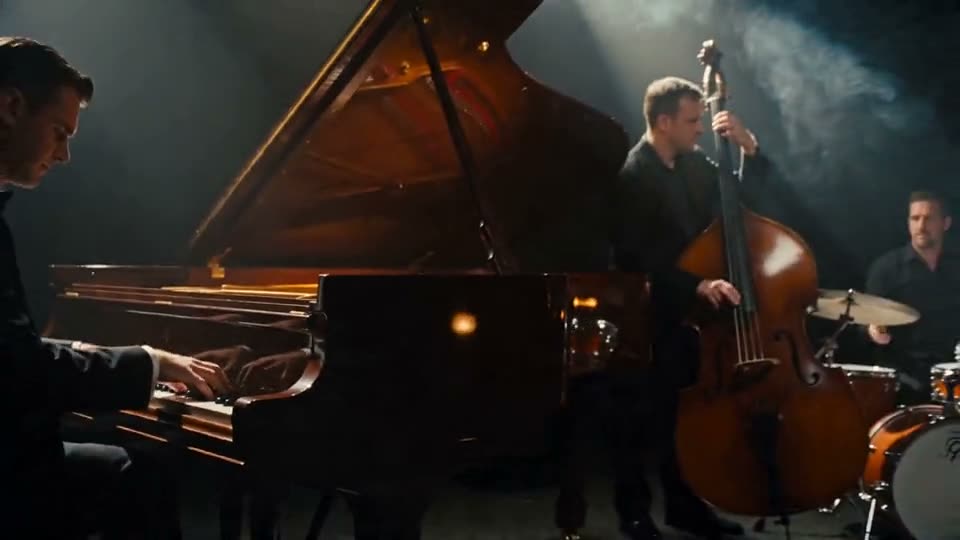
Seedance 2.0
Jazz club with native audio
Source: Replicate blog
Text-to-video workspace
Start with a text prompt—no starting image needed. Preview the same prompt across models, choose your framing and length, and see the credit estimate before you generate.
Seedance 2.0
Jazz club with native audio
Source: Replicate blog
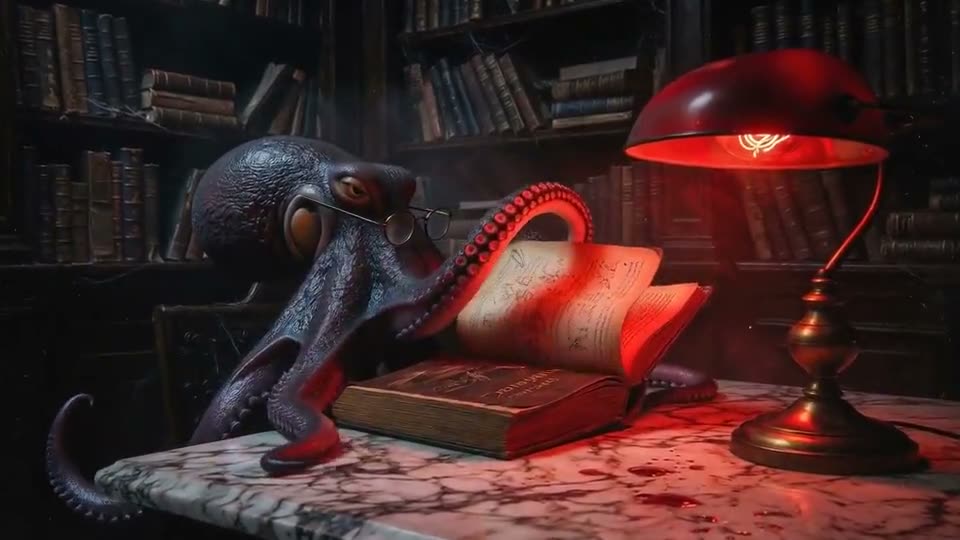
Grok Imagine
The studious octopus
Source: @doganuraldesign via @imagine
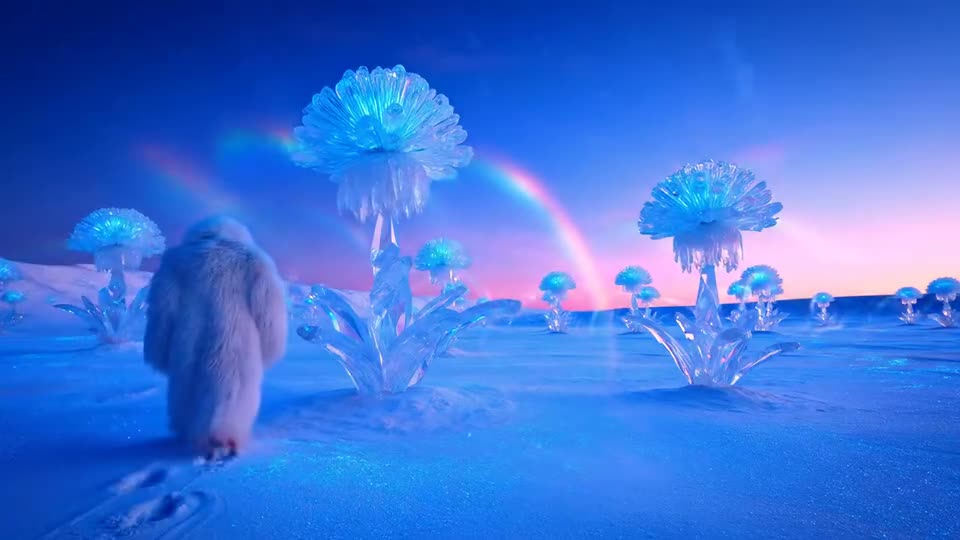
Veo 3
Glass dandelions at dusk
@GoogleDeepMind
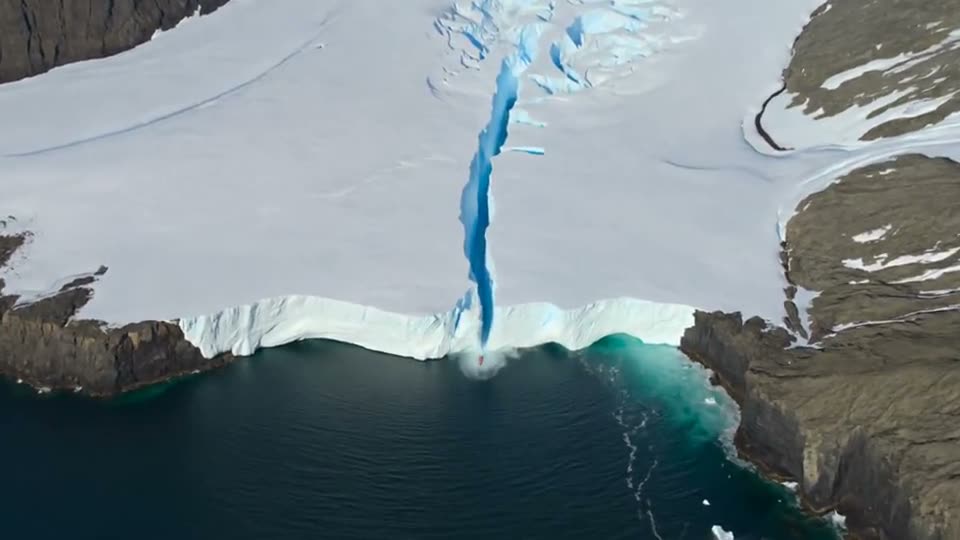
Kling 3.0
Beyond the Storm
@AllaAisling
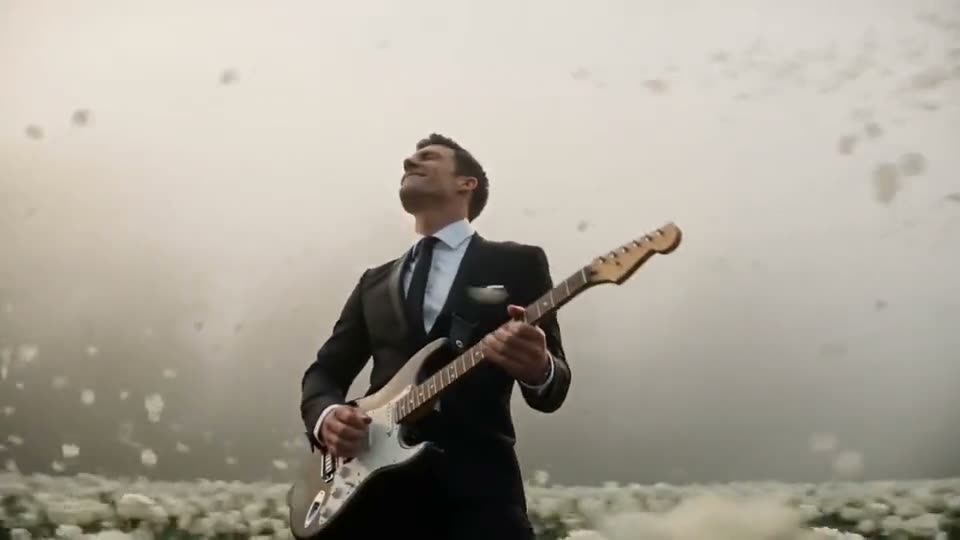
Seedance 2.0
Guitar from thin air
@MrDavids1
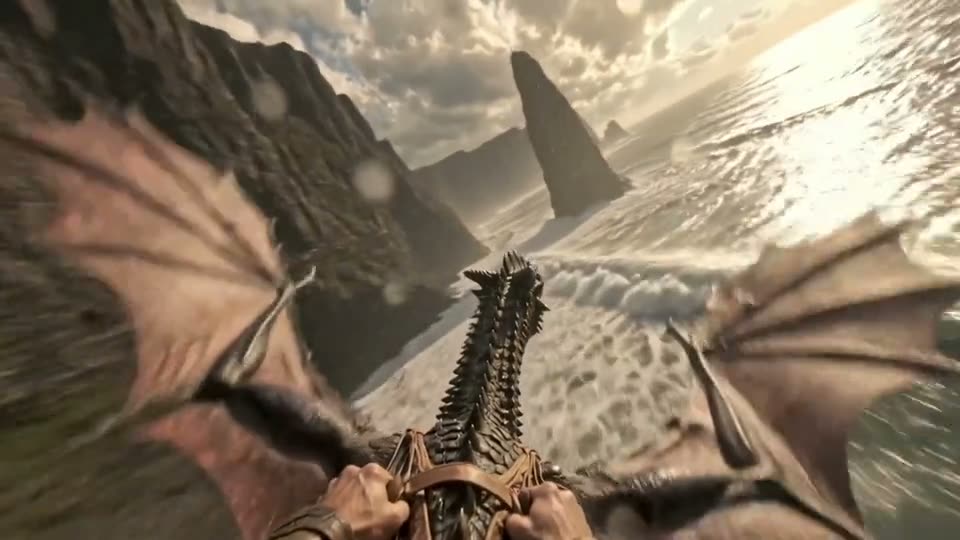
Grok Imagine Video 1.5
Dragon flight over sea cliffs
@grok
Public clips made with Veo, Kling, Seedance and Grok Imagine, shared on X and in open prompt collections. Pick one to see who made it and the prompt they posted.
Clips belong to their creators and are shown as examples, muted and compressed. They are not Videm renders.
Preview how different models interpret the same rainy scene. Play the clips to compare motion and any audio in the samples, or load a sample’s prompt and settings into the generator.
Seedance 2
A close-up of rain falling into a shallow puddle at dusk. A paper boat drifts right as the camera tracks at water level. Add clearly audible, synchronized raindrop splashes throughout, no music and no speech.
The settings shown are the ones used to request each clip. Some settings differ across models, and the previews are compressed for playback. This is a sample comparison, not a quality ranking.
Compare clip lengths, framing, audio controls, and credit estimates before you choose a model. Shared-prompt samples use model-specific settings and show results, not a ranking.
| Model | Length | Aspect ratios | Audio toggle | Credit example |
|---|---|---|---|---|
| 4–15s | 16:9, 9:16, 1:1, 4:3, 3:4, 21:9 | Available | 231 (4s · 720p) | |
| 4–15s | 16:9, 9:16, 1:1, 4:3, 3:4, 21:9 | Available | 88 (4s · 480p) | |
| 5–15s | 16:9, 9:16, 1:1, 4:3, 3:4, 21:9 | Available | 67 (5s · 480p) | |
| 4s, 6s, 8s | 16:9, 9:16 | None | 30 (6s · 720p) | |
| 4s, 6s, 8s | 16:9, 9:16 | None | 224 (6s · 720p) | |
| 4s, 6s, 8s | 16:9, 9:16 | None | 15 (6s · 720p) | |
| 6–30s | 2:3, 3:2, 1:1, 16:9, 9:16 | None | 18 (6s · 480p) | |
| 3–30s | 16:9, 9:16, 1:1, 21:9 | None | 201 (5s · 720p) |
Turn a written scene into a short clip, compare model outputs, and check the finished picture and sound.
Describe
Describe where it happens, what moves, how the camera follows it, and what it should sound like. No starting image is needed.
Start writingCompare
Eight model options turned the same written prompt into eight clips without a starting image. Some settings differ, so check each clip’s details before comparing.
View the samplesAudio
Some text-to-video models let you switch audio on or off; others don’t offer a toggle. Describe the sound you want, then play the clip to hear what came through.
See audio controlsDownload
Watch the finished clip. If a detail missed the prompt, refine it before trying again. Download the result with any audio it contains.
See the download stepA useful prompt names the subject, action, camera and sound in a clear order. Keep one main movement per shot so you can tell what worked.
Say who or what is in the shot and what it does. Add the setting and the detail that should stay visible.
Name where the camera starts, how it moves, and where it ends. A low tracking shot is easier to evaluate than several movements at once.
Describe dialogue, effects, or ambience separately. Audio controls vary by model, so listen to the result rather than assuming the prompt guarantees sound.
From a written prompt to a downloaded clip, here’s what to check at each step.
Write what the subject does, where it happens, and what the camera sees. If sound matters, name it: rain on a window, for example.
Set the clip length, aspect ratio, and resolution. Models may offer an optional audio switch or no audio control.
Sign in to generate. Check the credit estimate next to Generate Video before you submit. How long the clip takes depends on the model and queue.
Play the finished clip to check the motion and any audio it contains. Select Download Video to save the result.
Pick a prompt for the shot you need, then swap in your own subject, camera movement, or sound before generating.
Use a close-up pour to test how the camera captures steam, surface texture, and small movements in a product shot.
Use a street-level tracking shot to set the mood before a scene begins. Reflections establish the setting while rain and traffic give it depth.
Try a portrait opener for a fitness promo. The swaying jump rope gives a simple composition one clear point of movement.
Use text to video to explore an interior before reference photos exist. Describe the materials and light, then use one camera move to reveal the room.
A fixed frame lets you check whether the heron’s quick strike reads clearly. Use it as an insert between wider shots.
Test a character’s look and movement in one illustrated shot before planning the next scene. Give the character a distinctive prop or piece of clothing.
Dark espresso pours into a matte ceramic mug on a slate counter as steam rises. Slow macro dolly-in toward the cup. Soft liquid pouring over quiet café ambience.
A pedestrian with a black umbrella crosses a wet city street reflecting storefront lights. Track alongside at street level. Add steady rain on the pavement and a distant traffic hum.
Vertical frame of an empty commuter train platform at dawn. A yoga mat and water bottle sit on a bench as a jump rope sways from the railing. Slow push-in. A distant train chime echoes.
Sunlight falls across pale oak floors as sheer curtains ripple by an open window. Glide forward from the entry into the living room. Soft birdsong comes from outside.
A heron in shallow marsh water at golden hour snatches a small silver fish from the surface. Hold a locked shot from the reeds. Gentle water laps nearby.
A hand-painted fox in a red scarf carries a glowing lantern down a moonlit forest path. Track slowly sideways beneath mossy trees. Crickets chirp softly.
Start with a prompt when you want to describe both the look and the movement. Start with an image when the shot needs to open on a specific picture.
The sample clips and model comparison are available before signing in. To generate your own clip, sign in and check the credit estimate next to Generate Video. It updates when you change the model or options.
Some models show an optional audio switch, while others show no audio control. An absent switch does not mean a sample has no audio, and a prompt does not guarantee that audio will be produced. Play the clip with sound on to check the result.
Your prompt and any compatible settings stay in place. Settings the new model doesn’t support reset to its defaults.
The wait depends on the model, settings, and queue. Clip length tells you how long the finished video plays, not how long it takes to generate. If the clip is still processing, check your video history before submitting again.
Sign in and open Generation History below the workspace or visit your account’s video history. Download any clip you want to keep.
When the clip is ready, choose Download Video in the result panel. The downloaded file includes any audio present in the result.
Keep what worked and change one thing at a time. If the camera missed the action, clarify its movement. If you want to compare models, keep the prompt the same.
Break the sequence into individual shots. Give each one a prompt and framing, then arrange and trim the downloaded clips in a separate video editor.
Start with one text-to-video shot: describe the action, camera, and sound. Sign in, pick a model, and check the credit estimate before you generate.
Generate a Video